Closed Loop User Guide

Getting started
This document outlines the entire Closed Loop process, covering all users involved, including Micro-Pak Admins, Fulfillment Team, Recycling Partners, Corporate Admins, Regional Managers, and Store Leaders.
Corporate Retailer account setup
When a new customer signs their Closed Loop contract, a Micro-Pak Admin schedules a brief onboarding call to:
Walk through the Dashboard
Verify that regions, stores, and users are set up correctly
Explain how ordering and recycling work for stores
Answer any questions
Once scheduled, the Micro-Pak Admin adds the company and Corporate Admin to Closed Loop using the Add Customer button on their Dashboard. The system automatically sends an invitation email with a link to activate the new account and the Getting Started with Closed Loop guide.
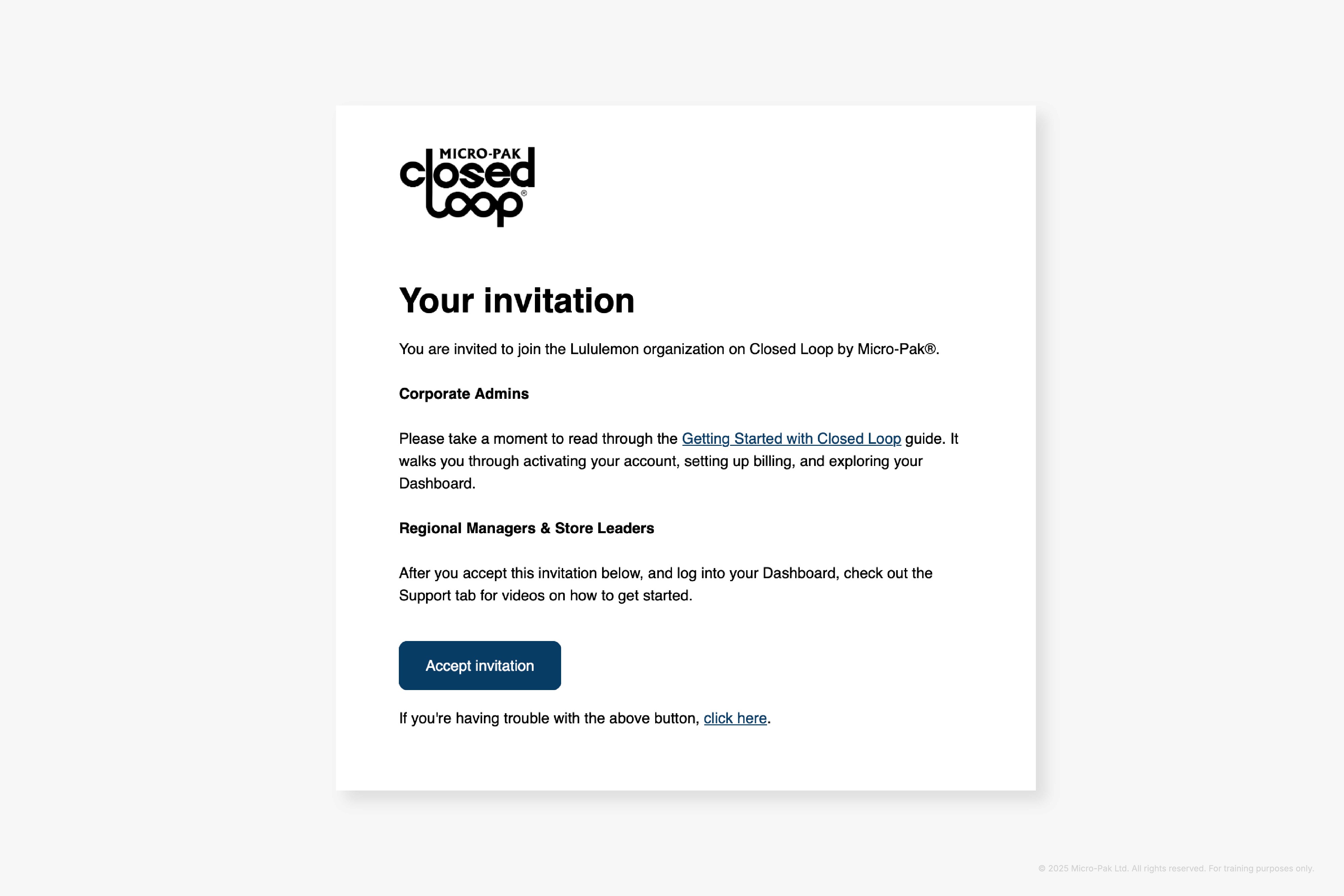
Billing, Users, Regions, and Stores
To access their Closed Loop Dashboard, Corporate Admins first use the link in their invitation email. (After activation, they can log in anytime at micropakclosedloop.com or directly at app.micropakclosedloop.com.)
When first logging in, they’ll be prompted to choose a billing method:
Corporate Billing: One monthly invoice for all stores (with a 15% discount).
Store-Level Billing: Each store is billed individually.
After selecting a billing method, they continue by adding company information (in the following order):
Regional Managers
Store Leaders
Regions
Stores
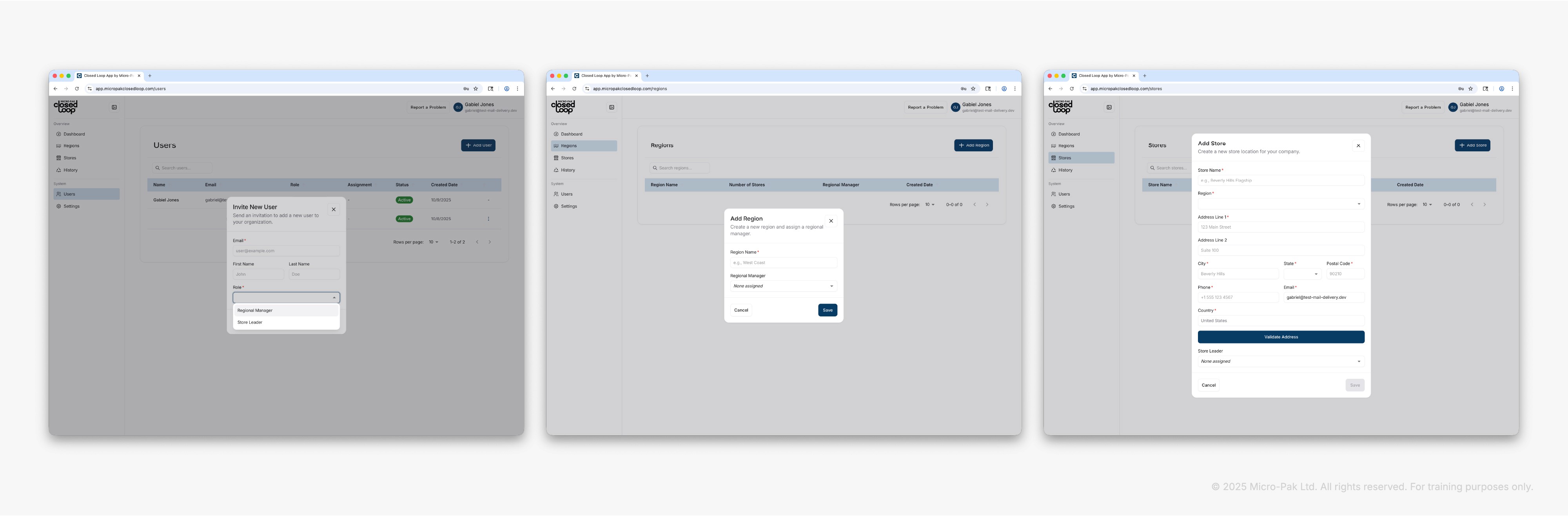
For a step-by-step walkthrough of setup, see the Getting Started with Closed Loop guide (Corporate Admin Onboarding).
Placing an order
Only Store Leaders can place orders for Collection Boxes.
Set up a subscription
When Store Leaders first log in, they see a Subscription Status tile and option to Set Up Subscription.
They choose how many Collection Boxes (in 5-Pack quantity) they want to receive each month.
Subscriptions are the fastest and easiest way to receive boxes each month. Each store manages its own subscription. Corporate Admins cannot place or manage subscriptions on behalf of stores.
Place a one-time order
Used only if the store is running low outside their normal subscription.
Log in to the Dashboard
Select View Subscription
Choose Order additional Boxes
Place the order
Once submitted
The order appears in the Fulfillment Dashboard in real time.
Store Leader receives confirmation and shipping details.
Additional Box orders are for Collection Box 5-Packs.
Fulfillment and shipping
The Fulfillment Team assembles and ships all orders. Each outbound shipment contains one Master Carton that holds five Collection Boxes.
Fulfillment workflow
Receive and process orders
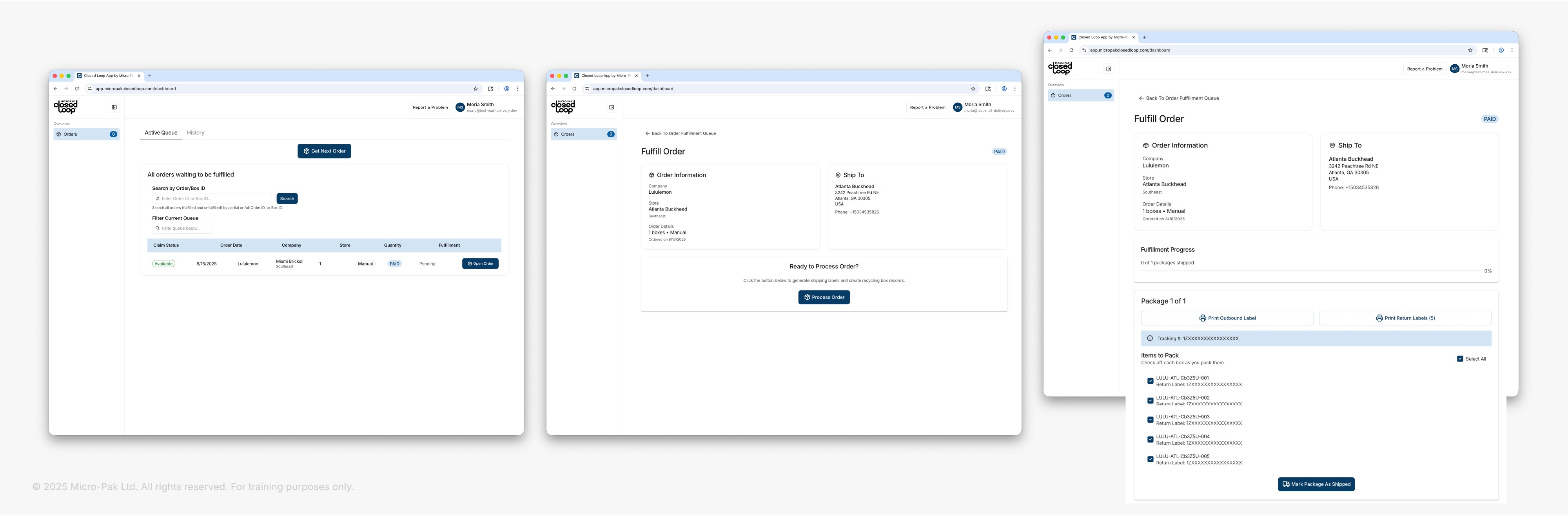
Orders appear in the Order Inbox of the Fulfillment Dashboard.
Select Open Order.
Click Print Outbound Label (4" x 6", 5-Pack UPS Label). This will generate a PDF download you can print using your label printer.
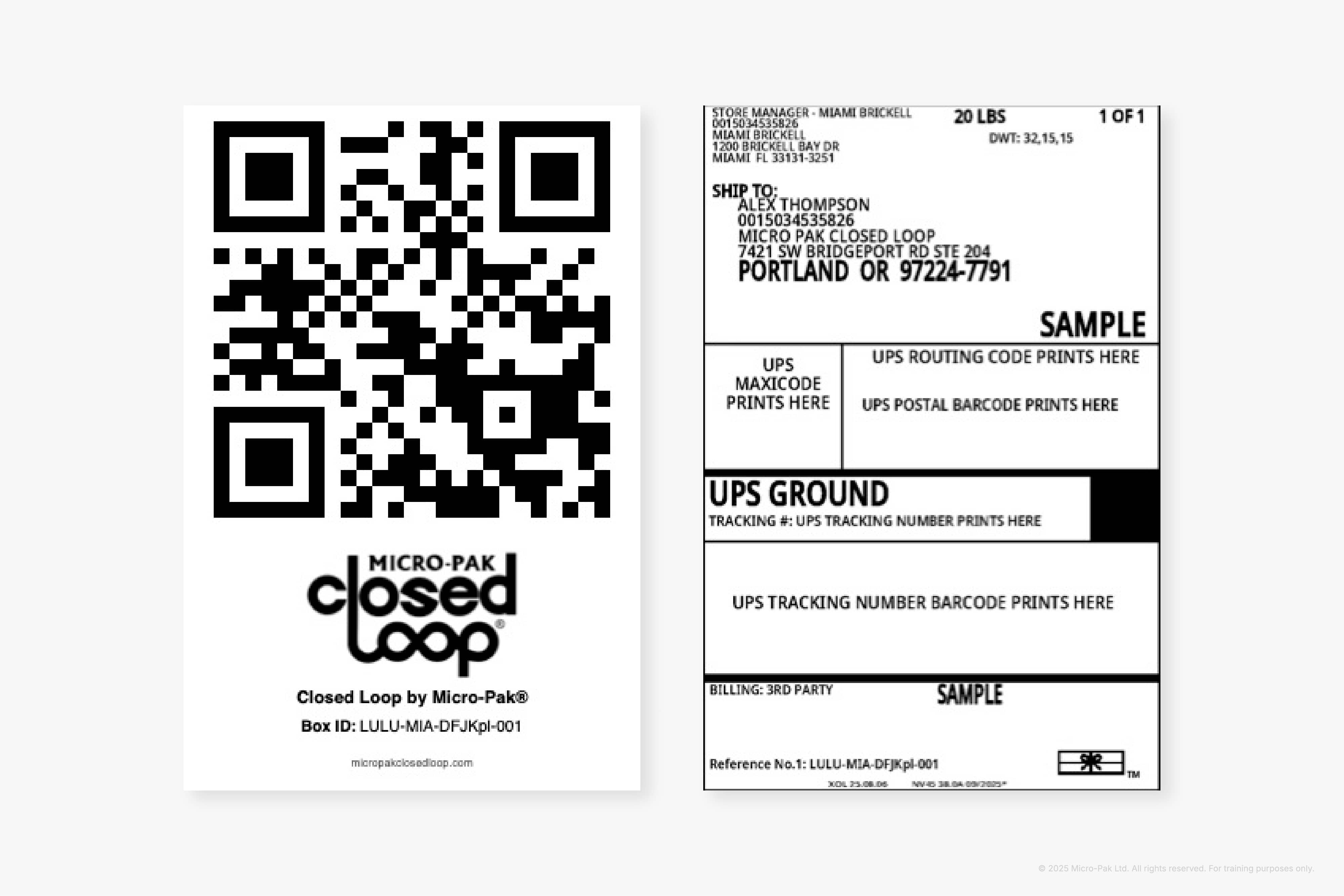
Click Select All > Print Return Labels (5 total; one for each Collection Box, formatted as 4" x 6"). This will generate a multi-page PDF that includes both the UPS Return Labels and their matching QR Labels. Print the PDF using your label printer. Each return label includes a matching QR label for tracking.
Prepare each Collection Box: Place the individual UPS return label and QR code label on the top flap.
Pack the 5 Collection Boxes with UPS and QR labels attached into a Master Carton: Attach a Closed Loop instruction card horizontally inside the top flap of the Master Carton using clear stickers. One sticker goes on each side of the card.
Label and seal the Master Carton
Place the outbound UPS shipping label on the top, outside of the Master Carton.
Set the Master Carton aside for UPS pickup.
Mark as shipped
In the Fulfillment Dashboard, select the order.
Click Mark Package as Shipped to complete the process.
Each QR label is linked to the receiving store’s ID for downstream tracking and ESG reporting. It includes a scannable QR code with the Box ID printed below. Both point to the same identifier. The Box ID is also printed in the footer of the UPS return label, so even if the QR label is damaged, the box can still be identified.
Using a Collection Box in-store
Open the box: Remove a Collection Box from the 5-Pack carton and place it in your staging area. Unfold the box, press the base into position, and it locks open automatically. It’s ready to use. Follow the blue instruction card for guidance.
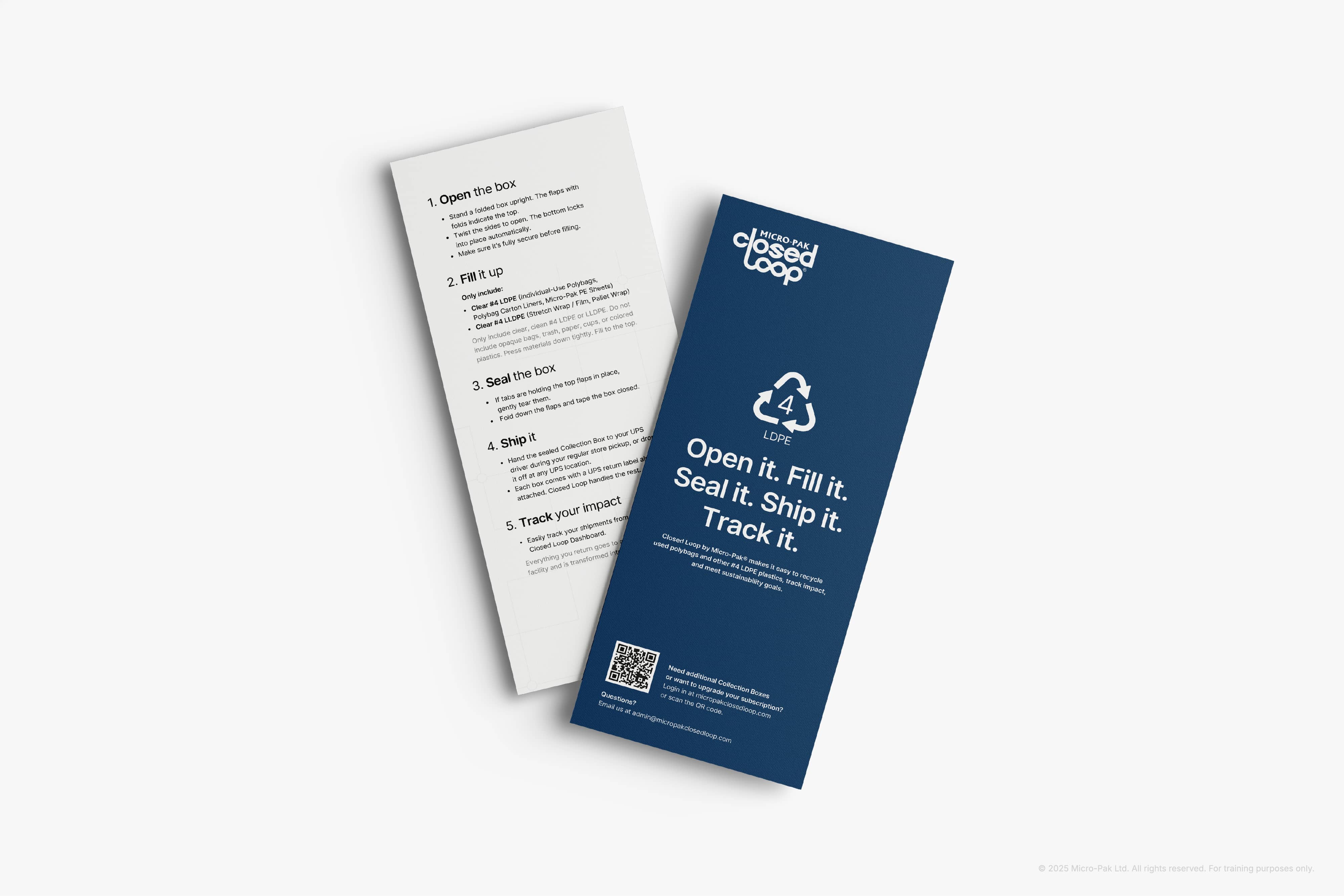
Fill it up: Fill your Collection Box only with clear, clean #4 LDPE plastics like polybags, stretch film, pallet wrap, and PE sheets. Do not include other materials like cardboard, paper, hangers, food waste, products, or trash. If non-recyclables are included, the box may be rejected and excluded from reporting.
Seal the box when full.
Ship it using the attached UPS return label. Simply hand it to your UPS driver on their next scheduled pickup.
Recycler workflow
The Recycling Partner is responsible for
Receiving full Collection Boxes
Scanning QR codes using their Closed Loop dashboard
Entering weight and verifying content compliance
Sorting and storing acceptable plastics (LDPE)
Logging volume received per store
Step 1: Scan box
Use a mobile device (phone or tablet with camera and internet capability). We suggest an iPad mini (refurbished models available for $379 Apple) or Samsung Tab A9+ 11" available for $150 (Amazon).
Log into the Closed Loop dashboard and tap the Scan Box button.
Use the camera to scan the QR code.
If the QR code is damaged, tap Manually Input ID and enter the Box ID printed below the QR code or in the footer of the UPS label.
Step 2: Enter weight and accept or reject contents
After scanning the QR code, the system will identify the box.
Enter the weight of the full Collection Box and tap Continue.
You’ll be asked if the contents are acceptable. Tap Yes to accept or No to reject. [Insert image here]
If rejecting, select one or more reasons from the list provided.
Rejected boxes are excluded from recycling metrics to ensure data accuracy.
Rejection reasons are visible in the History tab for all users.
Corporate Admins, Regional Managers, and Store Leaders receive dashboard notifications of rejected boxes. Rejection reasons are stored with the box’s history and visible to retail users.
Step 3: Complete box processing
Tap Accept and Process or Reject and Save based on content compliance. The box is now marked in the system and visible in the box history.
Notes
If a box is returned without a scannable QR code, it can still be processed using the Box ID printed on the UPS label.
If a shipment is delayed, damaged, or lost, our support team will track it, identify the issue, and resend Collection Boxes as needed.
Recyclers can only access the QR scanning interface and the history of boxes they’ve processed. They do not have visibility into corporate- or store-level impact dashboards.
Admin and Dashboard tools
Corporate Admins & Regional Managers
View all regions, stores, and users
Monitor box orders, returns, and inventory
Download ESG and compliance reports
View all collection box history, including rejected boxes, and details
Store Leaders
Set up and manage monthly auto-renew subscriptions
Place one-time orders as needed
Track store-level recycling impact
View fulfillment status of orders
View all collection box history, including rejected boxes, and details
Fulfillment & Micro-Pak Admin
View and manage incoming orders
Generate and track labels via Shippo integration
Ensure box and label integrity by store ID
Oversee shipping timelines and delivery confirmation
Recyclers
Scan and process incoming Collection Boxes
Input weight and sort accepted materials
Mark rejected boxes with reason
View history of boxes they’ve processed
Support and troubleshooting
If you have any questions, run into issues, or need help at any point in the Closed Loop process, we’re here to help.
Contact support
Email: nate@blastoffstudio.com
Response Time: Typically within 1 business day
Report a problem from your Dashboard
Every user dashboard has a "Report a Problem" button located in the top-right corner.
Clicking this allows you to quickly submit an issue, and we’ll be notified immediately.
Please include as much detail as possible, such as:
The store or region affected
What you were trying to do
Screenshots or error messages (if available)
We’ll follow up with a resolution or next steps as quickly as possible.
Closed Loop was built to simplify sustainability. If something doesn’t feel simple, let us know.
Updated November 13, 2025